Add a Template
Templates define what data FlexiExport exports and how the generated file is structured.
Add a Custom Template
- Open FlexiExport in your Wix dashboard.
- Click Add template in the top-right action area.

- Select Custom.

- Configure the template settings and selected fields.
- Click Save.
After saving, FlexiExport may ask whether you want to create an export file immediately.
tip
Choose Custom when you need exact control over fields, sheets, filters, storage, scheduler, or email settings.
Add a Predefined Template
- Click Add template in the top-right action area.
- Select Predefined.

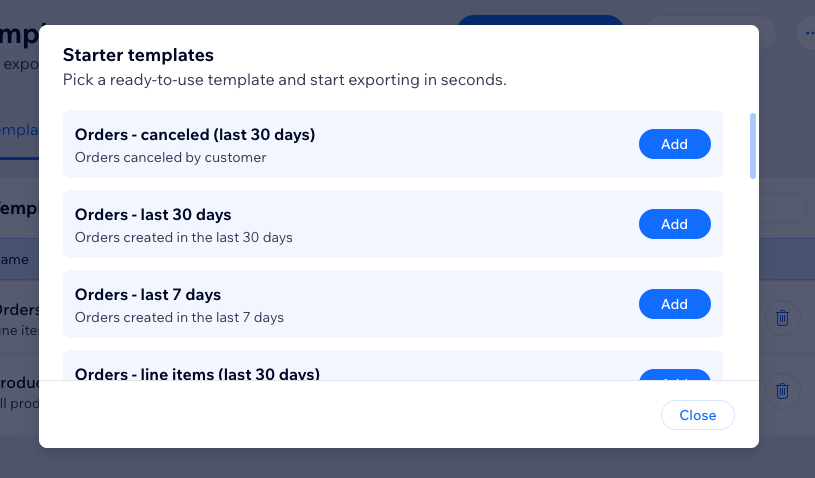
- Choose a template from the list.
- Add it to your templates.
After the predefined template is added, you can generate a file immediately or edit the template first.
When Adding Templates Is Blocked
Adding templates may be blocked if:
- Your current plan template limit is reached.
- You are a contributor and the site owner did not allow template creation.
If the template limit is reached, remove an unused template or upgrade the plan to be able to add more templates.
For contributor rules, see Contributor Access Settings. For plan limits, see Upgrade Plan.