Create an Export File
You can create an export file from any template that is not blocked by plan limits, catalog version mismatch, or active export status.
If another export is already active, the next one is added to the queue. See Export Queue.
Create a File After Saving a Template
After you save a new or updated template, FlexiExport may show the Create export file now? confirmation dialog.
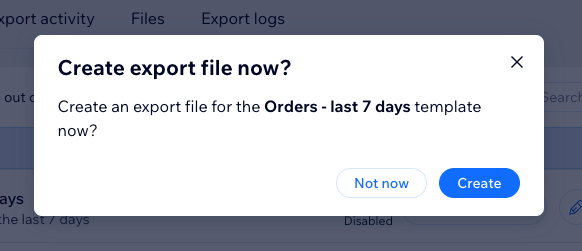
Click Create to start file generation.
Create a File From the Templates Tab
- Go to the Templates tab.
- Find the template you want to run.
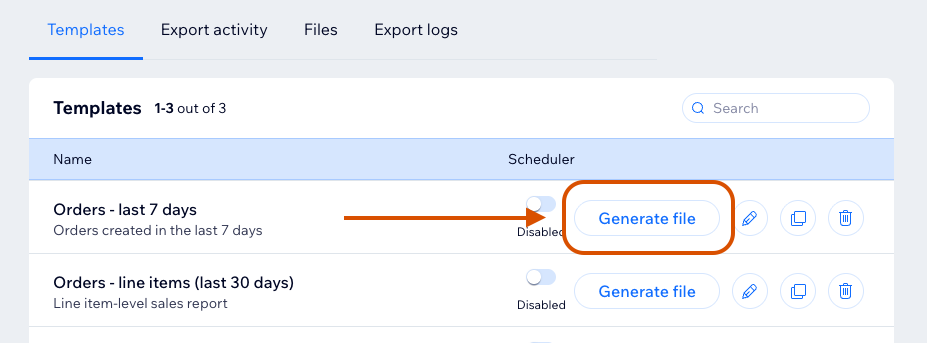
- Click Generate file in the template actions.
If another export is already running or pending, the template may be added to the export queue.
Check Progress
Use the Export activity tab to see export progress.
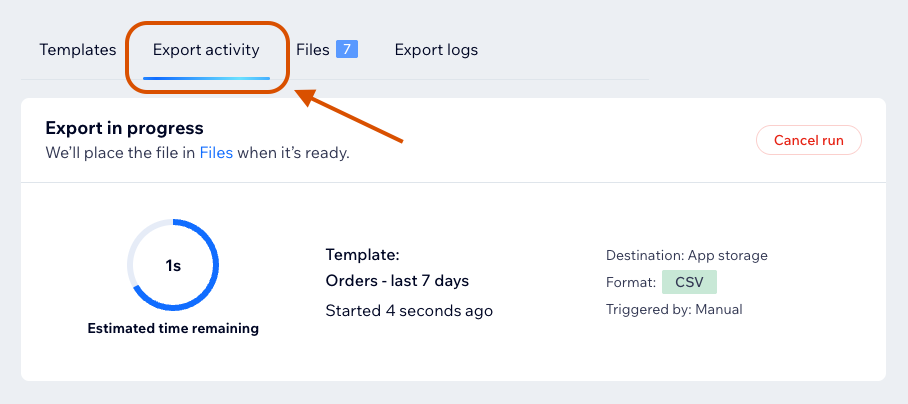
For status details, see Export Statuses.
When Generation Is Blocked
File generation may be blocked if:
- The template is over current plan limits.
- The template was created for a different catalog version.
- Another restriction is returned by the app or Wix data access.
If a template was created for a different catalog version, recreate it for the current catalog before running it.
For plan-related blocking, see Upgrade Plan.