Download an Export File
Generated files are available in the Files tab after export preparation finishes.
tip
If you just started generation, use Export activity first. The file appears in Files only after preparation finishes.
Download From the Files Tab
- Go to the Files tab.
- Find the generated file.
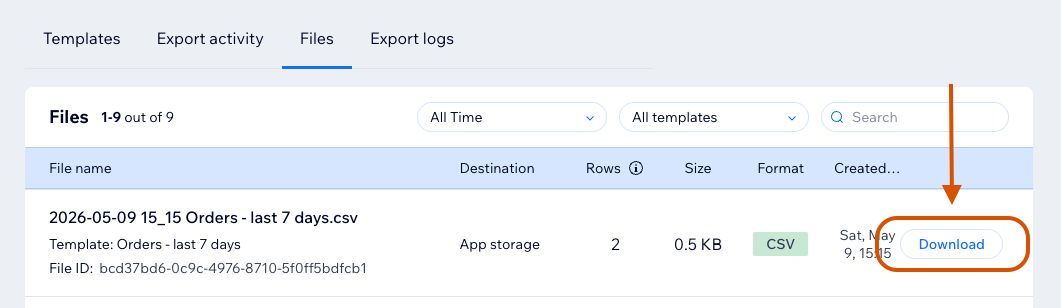
- Click Download.
The downloaded file uses the destination file name configured in the template.
If the File Is Not Visible Yet
Check the Export activity tab to confirm the export finished, then return to Files.
Contributor Downloads
Contributor downloads require the Allow downloading files contributor permission. They also depend on sensitive-field rules and Wix data access. See Contributor Access Settings.
Row Limit Indicator
If a file may be truncated by the current plan row limit, an info icon appears next to the row count.