FTP and SFTP Integration
FTP integration lets FlexiExport upload generated files to an FTP or SFTP server.
Configure FTP
- Open Settings.
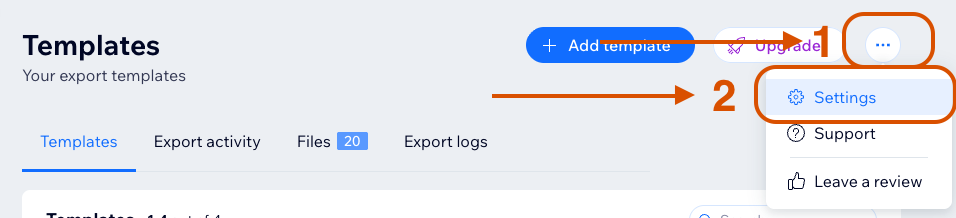
- Find FTP settings.
- Click Configure.

- Choose FTPS or SFTP.
- Enter host, port, username, and password.
- Click Save.
Default ports:
- FTPS:
21 - SFTP:
22
FlexiExport verifies the connection when saving FTP settings. Incorrect credentials, blocked ports, or server permissions can prevent saving.
Enable FTP for a Template
- Open a template.
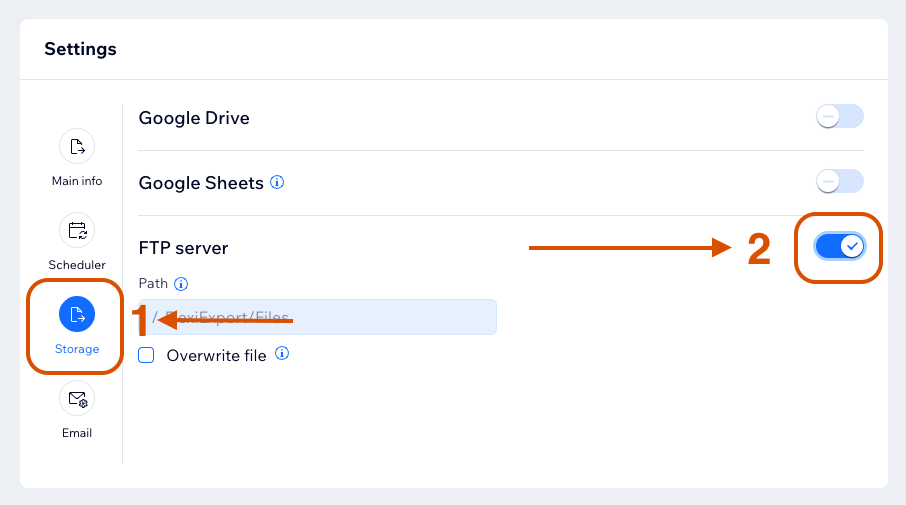
- Go to Settings.
- Open Storage.
- Turn on FTP server.
- Set an optional path.
- Choose whether to overwrite files.
- Save the template.
Remove FTP Integration
You can disconnect FTP from Settings.

When FTP is disconnected:
- FlexiExport deletes the saved FTP connection profile.
- FTP delivery is removed from existing template configurations.
- New exports will no longer upload files to FTP until FTP is configured again and enabled again in the template.
- Files already uploaded to the FTP server are not deleted by FlexiExport.
Path Rules
Leave the path empty to upload to the server root.
Use / to separate folders, for example:
FlexiExport/Files
Overwrite Behavior
FTP and SFTP support the Overwrite file checkbox in template storage settings.
When Overwrite file is enabled, FlexiExport overwrites the FTP destination file on each export.
If the generated file name changes, the previously uploaded file for this template is removed.
Security Rules
FlexiExport validates FTP host values and blocks local or private hosts. Use a public FTP or SFTP endpoint.