Google Drive Integration
Google Drive integration lets FlexiExport upload generated files to your Google Drive.
Google Drive must be connected in Settings before it can be enabled in a template.
Configure Google Drive
- Open Settings.
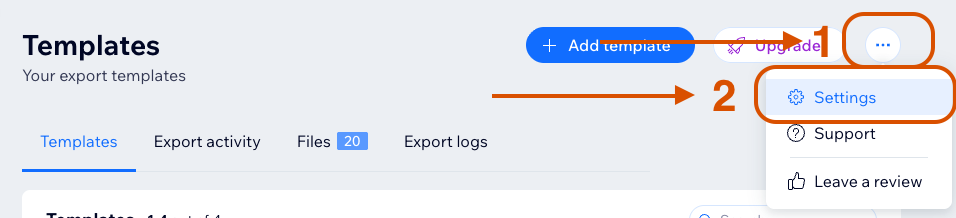
- Find Google Drive integration settings.
- Click Connect Google Drive.

- Complete the Google consent flow.
- Return to FlexiExport.
If the popup is blocked, allow popups and try again.
If the connection window does not open, check browser popup blocking for the Wix dashboard.
Enable Google Drive for a Template
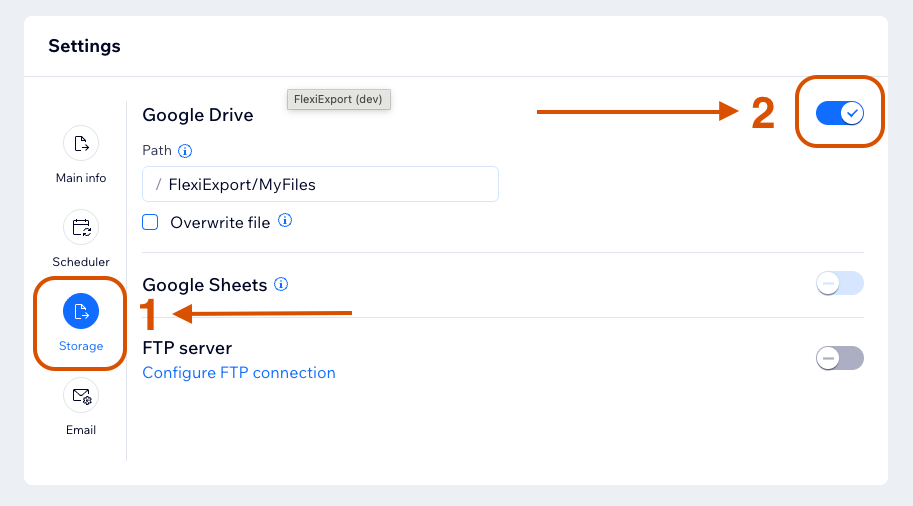
- Open a template.
- Go to Settings.
- Open Storage.
- Turn on Google Drive.
- Set an optional folder path.
- Choose whether to overwrite files.
- Save the template.
Remove Google Drive Integration
You can disconnect Google Drive from Settings.

When Google Drive is disconnected:
- FlexiExport revokes the saved Google access tokens.
- Google Drive and Google Sheets delivery are removed from existing template configurations.
- New exports will no longer upload files to Google Drive or create Google Sheets until Google Drive is connected again and storage is enabled again in the template.
- Files and spreadsheets already created in Google Drive are not deleted by FlexiExport.
Path Rules
Leave the path empty to upload to the Google Drive root.
Use / to separate folders, for example:
FlexiExport/Files
Path rules are listed in Storage.
Overwrite Behavior
Google Drive supports the Overwrite file checkbox in template storage settings.
When Overwrite file is enabled, FlexiExport reuses the same Google Drive file only when it is safe: same folder, same file name, and the file was not changed externally.
If safe overwrite is not possible, FlexiExport creates a new file.
Safe overwrite protects files that may have been moved, renamed, or changed outside FlexiExport.
Contributor Access
Contributors can use Google Drive only if the site owner allows Google Drive storage access.
Contributors can configure the Google Drive integration only if the owner allows Google Drive storage configuration.