Google Sheets Integration
Google Sheets delivery creates a spreadsheet from the generated export file.
Google Sheets uses the Google Drive connection. There is no separate Google Sheets connection setup.
Requirement
Google Sheets requires a connected Google Drive integration.
Configure it first in Google Drive.
Enable Google Sheets for a Template
- Open a template.
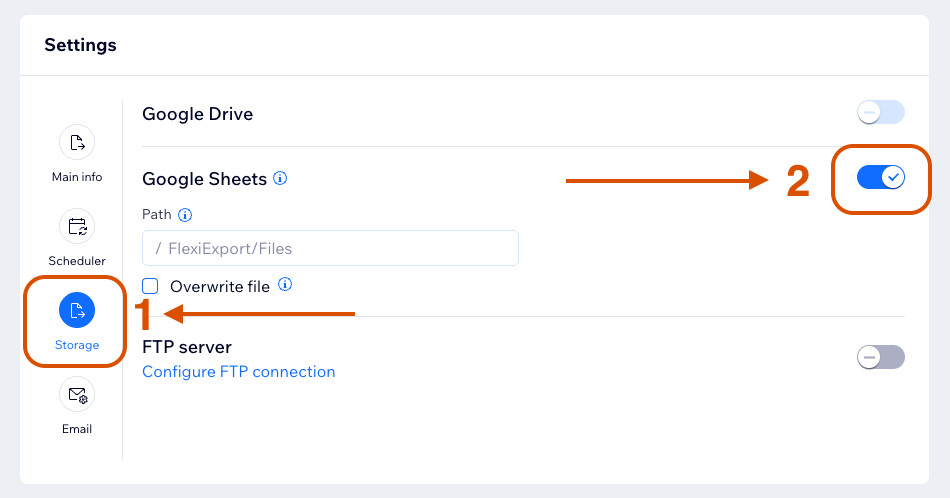
- Go to Settings.
- Open Storage.
- Turn on Google Sheets.
- Set an optional folder path.
- Choose whether to overwrite the spreadsheet.
- Save the template.
Remove Google Sheets Delivery
Google Sheets uses the Google Drive connection, so there is no separate Google Sheets integration to disconnect.
To stop using Google Sheets for one template, turn off Google Sheets in that template's Storage settings and save the template.
If Google Drive is disconnected from Settings, FlexiExport removes both Google Drive and Google Sheets delivery from existing template configurations. Spreadsheets already created in Google Drive are not deleted by FlexiExport.
Google Sheets Size Limits
Google Sheets export can fail if the generated file is too large.
Known limits:
- A sheet has over 10,000,000 cells.
- File size is over about 50 to 100 MB.
If these limits are exceeded, the upload to Google Sheets may not complete.
Very large exports can succeed as generated files but fail during Google Sheets delivery because of Google Sheets limits.
Overwrite Behavior
Google Sheets supports the Overwrite file checkbox in template storage settings.
When Overwrite file is enabled, FlexiExport replaces the previous Google Sheets file only when it is safe: same folder and the spreadsheet was not changed externally.
If safe overwrite is not possible, FlexiExport creates a new spreadsheet.